


Clearing your browser cache
Clearing your browser cache on your mobile device
1. Open the Settings app on your device, then select Safari.
2. Scroll down, then select Clear History and Website Data.
3. Tap Clear History to confirm.
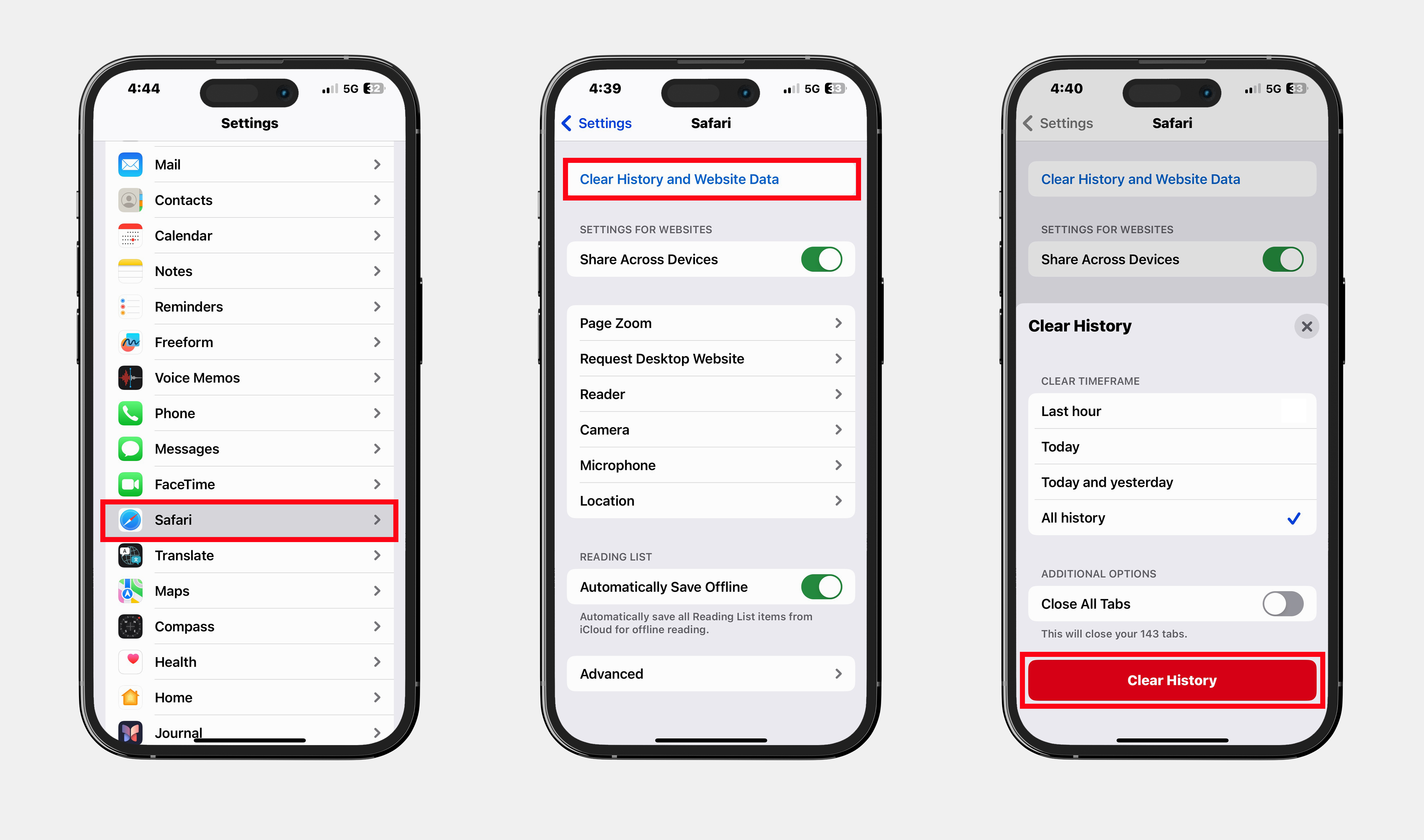
Before clearing cache and cookies
When you clear your cache and cookies, your browser might sign you out of your Google Account. To make sure you can sign back in, update your recovery phone number and email address.
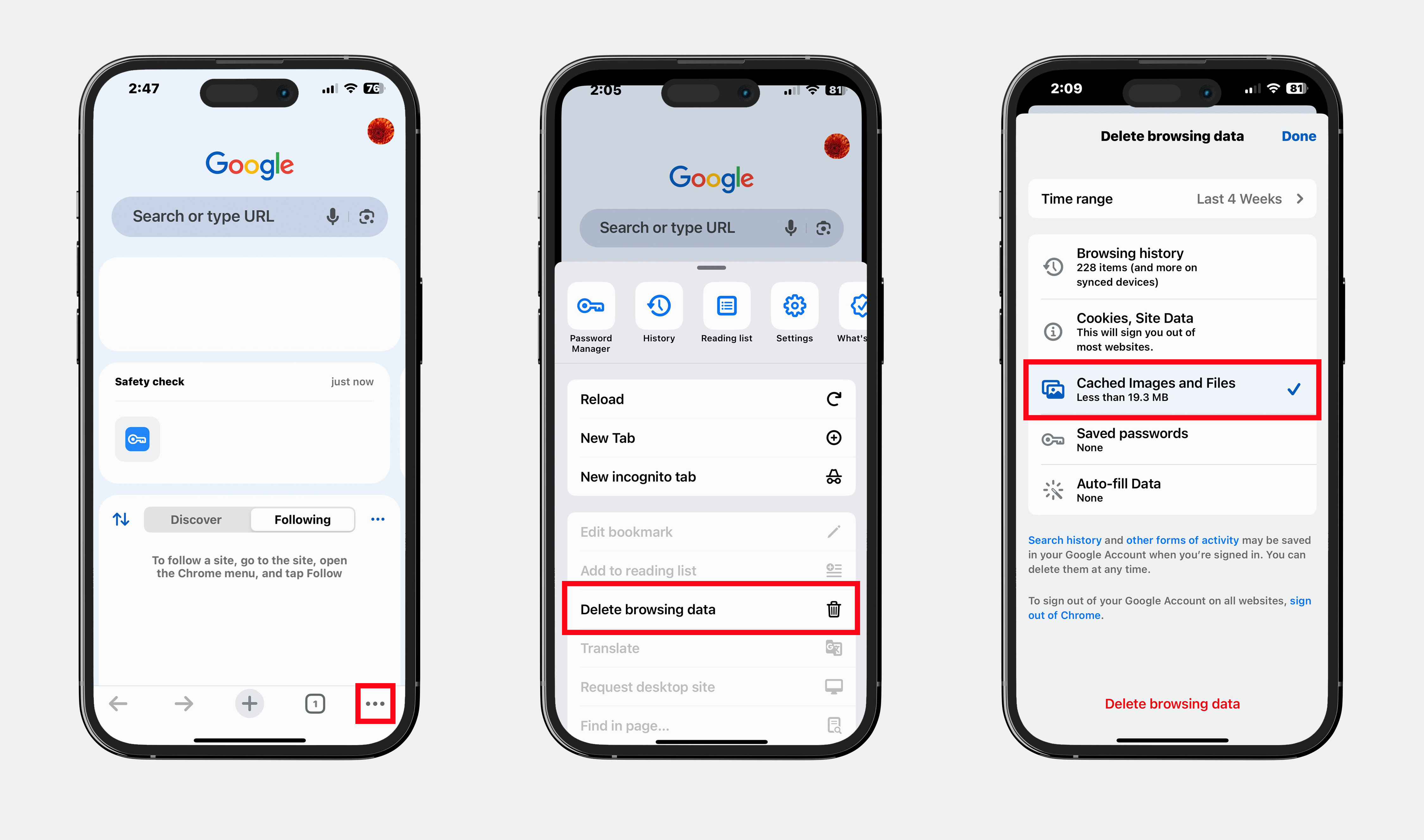
1. Open the Google Chrome app on your device.
2. Select the three dots menu at the bottom right corner of the screen.
3. Scroll down and select Delete browsing data.
4. Tap Time range and select All time.
5. Select the check mark Cached Images and Files.
6. Scroll down and select Delete browsing data.
1. Open the Chrome app on your Android device.
2. Tap More at the top right then select Delete browsing data.
3. To delete browsing history (including open tabs), choose a duration and tap Delete data and select All time.
4. Ensure Cached Images and Files are checked.
5. Tap Delete data to confirm.
Clearing your browser cache on your computer
1. On your computer, open Google Chrome.
2. Press the Shift-Ctrl-Del keys simultaneously. The following is displayed:
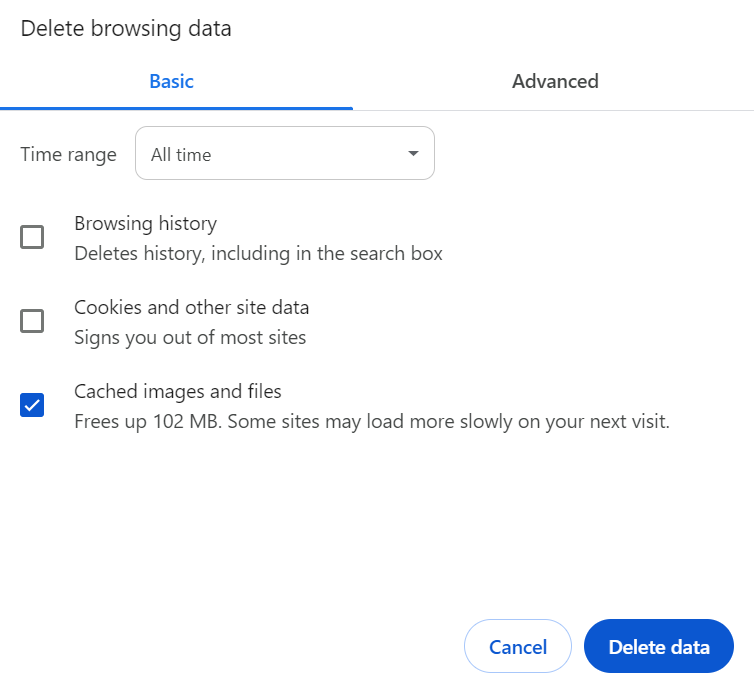
3. Select the time range All time.
4. Only tick the Cached images and files box and then click on the Delete data button.
1. On your computer, open Microsoft Edge.
2. Press the Shift-Ctrl-Del keys simultaneously. The following is displayed:
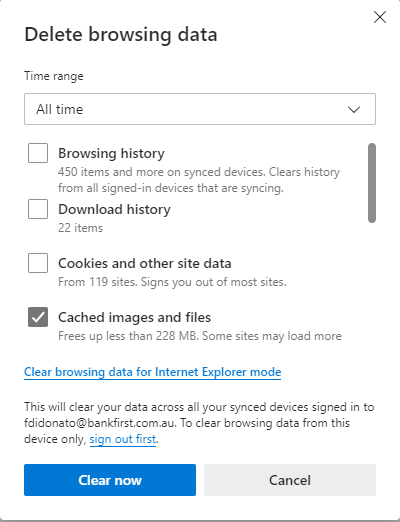
3. Select the time range All time
4. Only tick the Cached images and files box and then click on the Clear now button
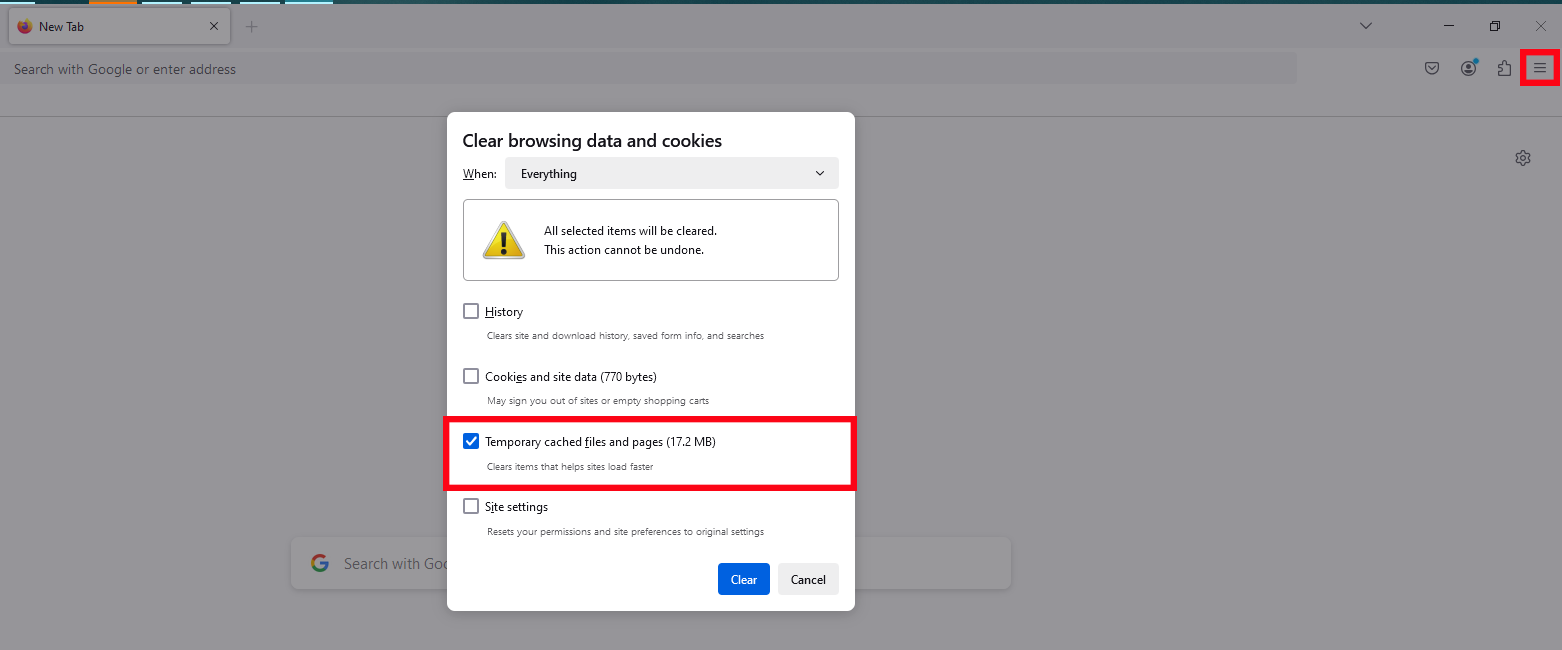
1. On your computer, open Firefox.
2. Click the menu button and select History.
3. Select Clear recent history.
4. In the When drop down field, select Everything.
5. Remove the check mark in front of History, Cookies and Site Data and Site settings...
6. Select the check mark Temporary cached files and pages..
7. Select Clear.
Click on the Safari menu in the top left hand corner next to the Apple symbol.
Click on Settings... and a new dialogue box will open.
Click Privacy.
Click on the Manage Website Data button.
To remove any cached data and cookies from your computer, click Remove all and a new dialogue box will open.
Click Remove Now.
Wait a few moments, then click Done.
Close the dialogue box remaining.
Press Command +Q to quit Safari.
